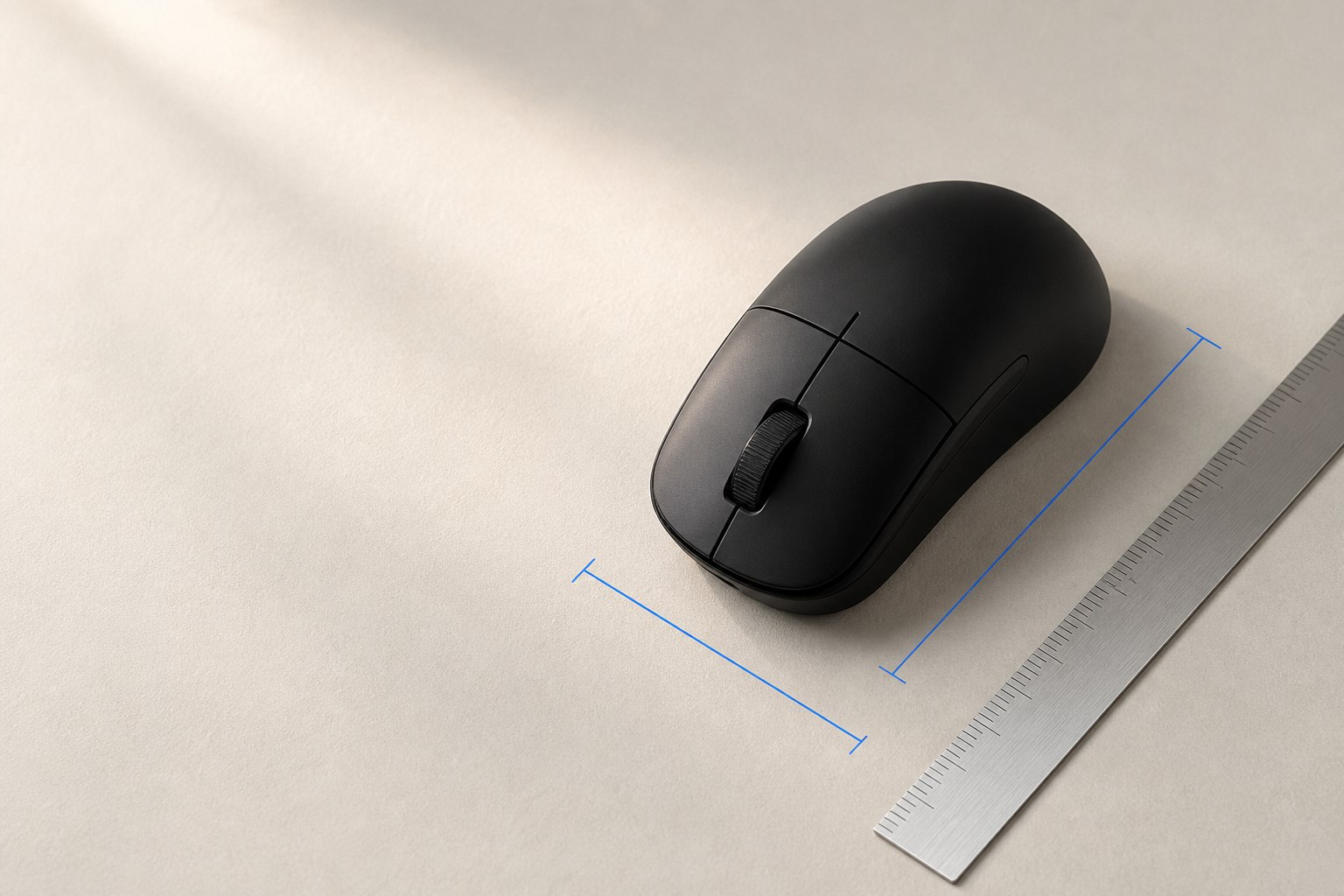
What a sensitivity conversion can match
A cross-game mouse sensitivity conversion maps one game's input scale to another so the same mouse movement produces a chosen equivalent result. The most defensible baseline is angular distance: the physical centimeters needed to rotate the camera 360 degrees. A converter can match that result when it knows both games' scale relationship.
Conversion cannot make different games look or play identical. Field of view, projection, animation, movement speed, weapon zoom, input latency, frame rate, and target scale change perception. Use the converted value as a controlled starting point, then verify it in the target game.
Capture the source setting exactly
Record the source game, active mouse DPI, base sensitivity, field of view, aspect ratio, raw-input state, acceleration state, and scoped multipliers. Copy the displayed decimal rather than estimating the slider position. Confirm that the mouse profile remains active after the game launches.
Calculate eDPI for your records if useful, but remember that eDPI is game-specific. The product of DPI and sensitivity compares settings within the same scale. It does not by itself translate one game's sensitivity number into another game's scale.
If the source already feels wrong, do not preserve it merely because it is familiar. Establish a workable baseline with the FPS sensitivity method first.
Use the converter in the correct direction
Open the mouse sensitivity converter. Select the game whose value you know as the source and the new game as the target. Enter the exact source sensitivity and requested DPI fields. Do not reverse the games; scale ratios are directional.
Copy the target result to the precision accepted by the game. If the converter returns 0.4375 and the menu accepts four decimals, use all four. If the menu accepts only two, round to 0.44 and expect a small difference. Save both the exact result and entered result.
Keep DPI unchanged during the first verification. This isolates the game-scale conversion. If you also want a new DPI, convert the game first, confirm it, then apply the inverse DPI adjustment as a second step.
The manual ratio method
If you know a trustworthy scale factor between two games, multiply the source sensitivity by that factor. Alternatively, if you know the source and target yaw values in compatible units, preserve the product that determines angular movement.
Do not invent scale constants from eDPI or field of view. Use current, verified game data and note the version. Games can update input behavior, and community values can be mislabeled. When a supported converter and a physical measurement disagree, recheck source/target order, DPI, decimals, and game options.
The physical turn test is the final check because it observes the behavior you intended to preserve.
Verify with centimeters per 360
In the source game, face a distinct reference in a private practice area. Mark the mouse start position and move until the camera makes one full turn. Measure the travel and repeat. Then perform the same procedure in the target game with the converted value.
Use the same mouse, DPI, pad marks, direction, and movement speed. Disable acceleration or use the intended raw-input mode so speed does not change the distance. If a full turn exceeds the pad, measure 180 degrees and double it.
Small differences can come from endpoint alignment and rounded menu values. Repeat before editing. If the target consistently requires more physical distance, sensitivity is lower than intended; if it requires less, sensitivity is higher.
Change DPI while preserving sensitivity
Once the game-to-game conversion is verified, you can change hardware DPI without changing overall angular sensitivity by adjusting the game value inversely.
For 800 DPI at 0.6, changing to 1600 DPI gives `800 × 0.6 ÷ 1600`, or 0.3. Within the same game scale, both have equal eDPI. Confirm that the new DPI step is actually active and that the game stores enough decimal precision.
Use the configured hardware DPI unless an appropriate raw-count method independently establishes a different value. The browser ruler estimate reflects CSS cursor output and is unsuitable as a hardware correction factor. Confirm conversions with physical turn distance inside both games.
Understand field of view differences
Matching cm/360 preserves angular rotation, not visual motion on the monitor. A narrower field of view makes the same angular change occupy more of the screen; a wider field makes it occupy less. Two games with identical cm/360 can therefore feel faster or slower visually.
Decide what you want to preserve. Full-turn matching is simple and objective. Monitor-distance matching can make movement near a chosen screen radius feel closer, but it does not preserve every radius or full-turn distance. There is no single conversion that makes different projections identical everywhere.
Begin with cm/360 unless you have a specific scoped or monitor-distance goal. Then make a small documented adjustment in the target game if visual control—not angular memory—is the priority.
Handle ADS and scoped sensitivity separately
Base sensitivity and zoom sensitivity are separate conversion problems. Games use different zoom levels, fields of view, multipliers, and sometimes different formulas for hip fire and aim-down-sights. A base conversion does not prove that a multiplier of 1.0 matches scoped behavior.
Set and verify base sensitivity first. Then choose the most-used scope, measure a repeatable angular or on-screen movement, and tune that multiplier. Repeat only for zoom levels that matter to your play.
Label every result with the weapon or zoom level. A single number called “ADS sensitivity” is ambiguous when the game supports several scopes or per-zoom settings.
Convert between aspect ratios and resolutions
Mouse camera rotation should not be converted merely because screen resolution changes when the game uses relative input. A 1920×1080 and 2560×1440 display can use the same angular sensitivity. Desktop cursor travel is different from in-game rotation.
Aspect ratio and field-of-view implementation can change the visible scene and therefore perceived speed. Confirm the target game's field-of-view setting after changing aspect ratio. Do not multiply sensitivity by a resolution ratio unless authoritative game documentation specifically requires it.
The Pointer Lock API documentation helps explain the distinction: relative movement uses deltas rather than an absolute cursor position tied to screen edges.
Diagnose a conversion that feels wrong
First verify source and target selection, decimal entry, DPI, and active mouse profile. Confirm acceleration and raw-input states. Check whether the target game applied a per-character, per-weapon, or per-scope override. Restart the game if it reads settings only at launch.
Next measure cm/360 in both games. If the physical distances match but visual feel differs, investigate field of view and projection rather than changing the scale blindly. If physical distances do not match, check rounding, supported game version, and conversion direction.
Frame-rate instability and input lag can feel like sensitivity trouble. Stabilize performance before judging small differences. A conversion formula cannot correct uneven frame delivery.
Avoid common conversion shortcuts
Do not copy eDPI between games. Do not divide by screen resolution. Do not assume every game's slider is linear or every “1.0” multiplier means the same thing. Do not convert controller sensitivity as though it were mouse sensitivity; sticks use dead zones and response curves.
Do not round intermediate values aggressively. Do not change DPI, field of view, aspect ratio, and game sensitivity in one step. And do not judge a conversion from one hurried swipe after months of training in the source game.
Conversion is a measurement task. Keep variables fixed, verify the output, and then allow time for the new game's visual and movement context.
Build a reusable conversion record
Save source and target game versions, both entered values, DPI, exact converter output, rounded menu value, source and target cm/360, field of view, aspect ratio, raw-input state, and scope multipliers. Include the date.
This record lets you revisit a game after updates or reinstall without repeating guesswork. It also reveals whether a future mismatch comes from the converter, a changed game setting, or a different mouse profile.
Once the physical result is close, play several sessions before refining. Familiarity does not transfer instantly even when the math is sound. Change only when a repeatable control problem remains.
Work through a conversion example
For a hypothetical conversion, record the source at 800 DPI, sensitivity 0.50, and an observed 42 cm per 360. A target value depends on the specific games and their verified sensitivity scales; there is no universal target decimal. Enter the converter's value for those games, then measure the target turn. The site's listed factors are starting estimates unless supported by current game documentation.
In this hypothetical example, target trials of 41.7, 42.2, and 42.0 centimeters average about 42.0. Keep the converted target value as the provisional baseline if repeated measurements agree within your endpoint uncertainty. These invented trial values illustrate the method; they do not validate a scale factor. A different field of view can still change the apparent motion.
If the target averages 38 centimeters, recheck source/target direction, an ADS override, mouse profile switching, acceleration, and decimal storage. Correct a demonstrated cause before applying a hand-tuned ratio.
Choose what kind of match you want
Full-turn distance works well for broad camera control and is easy to verify. A 180-degree match uses less pad and contains the same angular relationship. A monitor-distance match prioritizes how movement maps to a chosen portion of the display, which can be useful between different zoom levels, but the match cannot remain exact at every screen radius.
State the method in the record. “Converted sensitivity” is ambiguous; “matched 42 cm/360 at base FOV” or “matched center-to-edge movement at 75% monitor distance” can be reproduced. Do not combine two methods and average their output, because they optimize different relationships.
When uncertain, start with cm/360. It uses physical distance and camera angle, requires fewer assumptions, and makes converter errors easier to spot.
Recheck after patches and seasonal resets
Games can reset settings, rename options, change configuration storage, or modify input behavior during updates. After a major patch, compare the saved menu value and one measured turn before retraining. If both match, perceived change likely comes from visuals, performance, or unfamiliar content.
If the menu value reset, restore it and confirm. If the value stayed but turn distance changed, look for newly introduced raw-input, field-of-view, character, or weapon overrides and consult official patch notes. Update your conversion record with the effective date.
Do not assume an old community conversion factor remains correct forever. A current physical check protects the baseline even when published calculators or game data lag behind a patch.
For unsupported games, do not guess from similarly named engines alone. Measure the source turn, select a candidate in the target, measure again, and adjust proportionally until the physical distances match. Label the result as a manual measurement rather than a verified engine constant.
Sources
- MDN, Pointer Lock API — relative mouse deltas and independence from cursor screen boundaries.
- NIST, SI Units—Length — exact inch conversion for physical-distance verification.