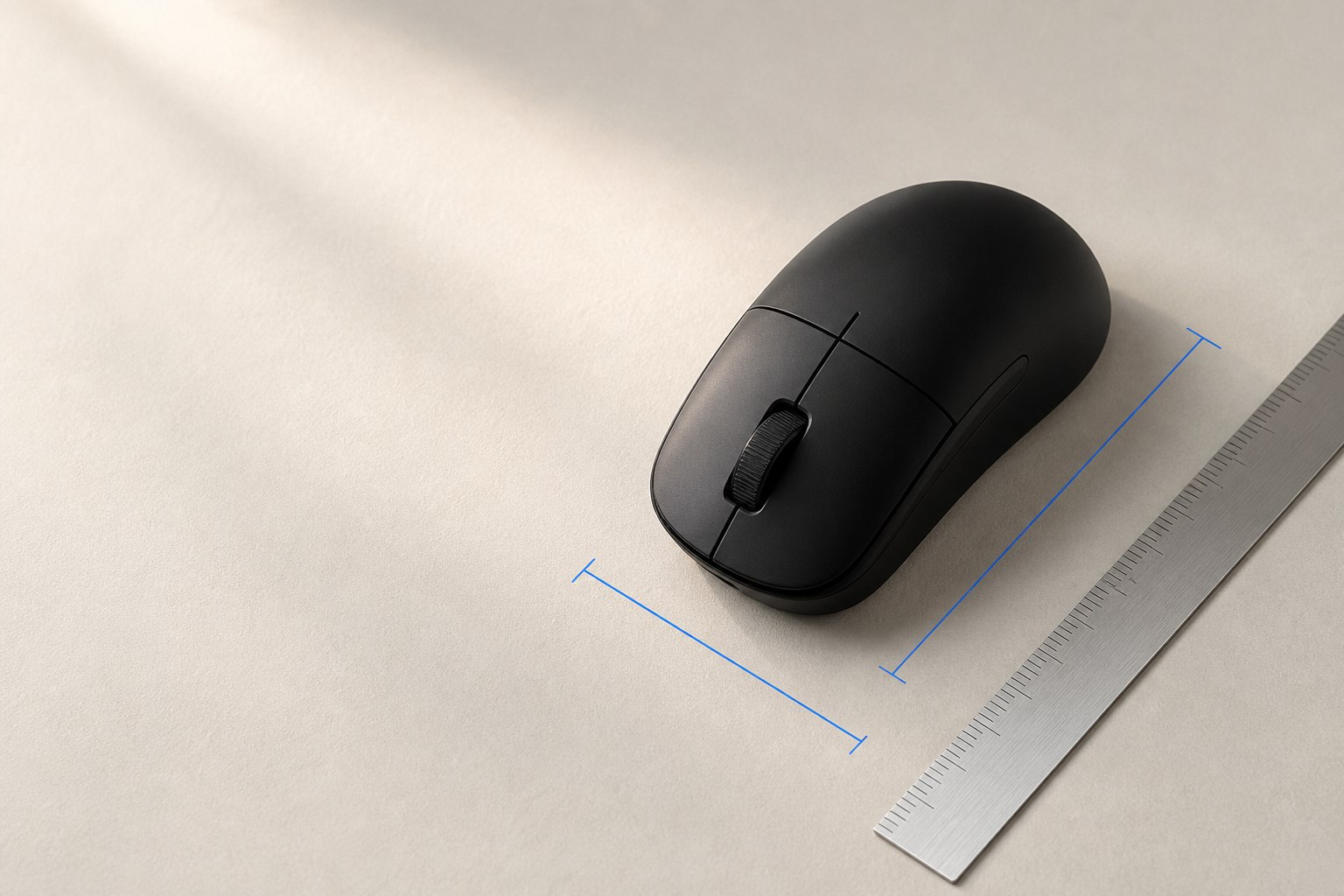
eDPI in one sentence
eDPI, short for effective dots per inch, is hardware mouse DPI multiplied by a game's sensitivity value. It gives players of the same game a compact way to compare two settings that use different DPI values. It is not a universal sensitivity unit, because games use different scales and camera-rotation rules.
At 800 DPI and 0.50 sensitivity, eDPI is 400. At 1600 DPI and 0.25 sensitivity, it is also 400. Within a game that applies the same input rules, those combinations are intended to produce the same overall angular sensitivity. The pairs are not identical in every technical respect, but eDPI shows that the main sensitivity product is equal.
Why eDPI is useful
A sensitivity value alone is incomplete. A player using 0.5 at 800 DPI and another using 0.5 at 1600 DPI do not have the same effective setting. DPI determines how many movement counts the mouse reports per physical inch; the game's multiplier determines how strongly each count rotates or moves the view.
eDPI combines those two controls so you can record a baseline, compare teammates' settings in the same title, or change hardware DPI without accidentally doubling the effective sensitivity. It also makes troubleshooting easier: when a setup suddenly feels fast, you can verify both inputs instead of staring at the game slider.
Use the site's eDPI calculator when you want the arithmetic handled automatically. Keep the game name beside the result. A note that says “320 eDPI” without naming the game loses the context that makes the number meaningful.
Calculate eDPI correctly
First, find the active DPI step in your mouse software or onboard profile. Do not assume the value printed on a box is the active setting. Many mice cycle through several steps, and application profiles can switch them when a game launches.
Second, copy the exact in-game sensitivity value. If the menu displays decimals, include them. Multiply the two numbers. For 400 DPI at 1.4 sensitivity, the result is 560 eDPI. For 1600 DPI at 0.35, the result is also 560.
If the game offers separate horizontal, vertical, scoped, or aim-down-sights multipliers, the base eDPI describes only the base sensitivity. Record additional multipliers separately. Multiplying every optional value into one giant number makes the note harder to interpret and compare.
Equivalent DPI and sensitivity pairs
To keep the same eDPI after changing hardware DPI, divide the target eDPI by the new DPI.
Imagine your baseline is 800 DPI × 0.70, or 560 eDPI. Moving to 1600 DPI requires `560 ÷ 1600`, giving 0.35 sensitivity. Moving to 400 DPI requires 1.40. This inverse relationship is the core of eDPI adjustment: double one factor and halve the other to preserve the product.
Round only as much as the game requires. If the calculated sensitivity is 0.4375 and the menu accepts four decimal places, keep it. If the game accepts two, use the nearest allowed value and then verify the result by feel or with a physical-distance test.
Why equal eDPI is not universal across games
Different games can assign different rotation angles to the same sensitivity number. Some use different underlying yaw constants, field-of-view behavior, input processing, or scoped multipliers. Therefore, 400 eDPI in one title can feel nothing like 400 eDPI in another.
For cross-game transfers, use the mouse sensitivity converter, which accounts for the supported games' scale relationship. For a manual, engine-independent check, measure centimeters per 360-degree turn. The physical-distance method asks a concrete question: how far must the mouse travel for one full camera rotation?
The web platform's Pointer Lock documentation describes why first-person applications use movement deltas rather than an absolute desktop cursor position. Games then apply their own camera rules to those deltas. That application-specific layer is exactly why eDPI should stay within a named game.
Use eDPI to establish a baseline
Before tuning, record four items: mouse DPI, base sensitivity, resulting eDPI, and measured centimeters per 360 if the game allows a reliable test. Add scoped multipliers only if you use them. This baseline gives you a reversible starting point.
Play with the baseline for several sessions before changing it. One poor match may reflect fatigue, positioning, frame rate, or unfamiliarity rather than sensitivity. When you do test a change, adjust the eDPI by a deliberate percentage—perhaps 5% or 10%—instead of randomly moving both sliders.
To increase a 400 eDPI baseline by 5%, target 420. At 800 DPI, sensitivity becomes 0.525. To reduce it by 10%, target 360, producing 0.45. Percentage changes make experiments comparable and prevent the endless loop of tiny undocumented tweaks.
Pick hardware DPI versus game sensitivity
Equivalent eDPI pairs preserve the main product, but they are not a command to use any extreme combination. Choose a hardware DPI that the mouse supports natively and that gives comfortable desktop control. Then use the in-game value to reach the desired eDPI.
Very low hardware DPI paired with a very high game multiplier creates larger angular steps per reported count. Very high DPI paired with a tiny in-game number can be limited by the number of decimal places the game stores. The practical middle is a stable DPI step that offers enough adjustment range without making menus or the desktop awkward.
Do not infer sensor quality from the largest selectable DPI. Use the configured hardware DPI in your eDPI record. Our calibration guide explains why the browser CSS cursor estimate is not an independently measured hardware DPI. Use a measured hardware value only if a suitable raw-count method has established it.
Compare settings without copying blindly
Another player's eDPI is a reference, not a prescription. Hand size, grip, mouse mass, pad space, role, field of view, posture, and training history all influence comfort. A copied number can be a starting point when you have none, but it should pass your own control tests.
Compare within the same game and mode. A player may publish base sensitivity while using a separate scoped multiplier. They may also have changed DPI without updating an old profile page. If the source does not state both DPI and sensitivity, you cannot calculate eDPI reliably.
Useful comparisons describe a range and a reason. For example, a lower baseline may give more physical room for fine corrections but demand a larger pad for turns. A higher baseline reduces travel but makes small physical movements produce more rotation. Neither is inherently more professional.
Tune eDPI for FPS play
Start with enough pad room for the largest turn you regularly need, then test controlled tracking and quick target changes. If you repeatedly run out of pad during ordinary turns, raise eDPI modestly. If small corrections overshoot even when you are relaxed, lower it modestly. Keep technique and posture constant during the comparison.
Use the same in-game practice task for each candidate and alternate the order across sessions. Keep DPI fixed while changing the game sensitivity. The site's aim trainer uses the desktop cursor and does not apply your game's sensitivity value, so it cannot compare these candidates. Record typical in-game control and errors rather than only a best score.
Separate base aim from scoped aim. First settle the base eDPI. Then adjust scope multipliers with a task that actually uses each zoom level. Changing both together hides whether the problem comes from the base or the modifier. The detailed FPS sensitivity setup guide gives a complete test sequence.
Common eDPI mistakes
The first mistake is comparing eDPI across unrelated games as though it were a physical unit. The second is using the mouse's maximum advertised DPI instead of the active step. The third is ignoring application-specific profiles that switch when a game opens.
Other errors include mixing controller sensitivity with mouse sensitivity, forgetting a scope multiplier, rounding too early, changing operating-system acceleration at the same time, and assuming equal eDPI guarantees equal feel after a field-of-view change. eDPI is deliberately simple; it cannot summarize every input and visual variable.
If the formula is correct but the setup feels different, verify the active hardware DPI profile, game input mode, acceleration, frame rate, and scoped settings. Check the physical turn inside the game. Do not use a CSS cursor estimate to silently replace the configured DPI in the formula.
A clean eDPI record
Save an entry such as: “Game name — 800 DPI — 0.42 base sensitivity — 336 eDPI — scope multiplier 1.0 — 41 cm/360 — updated 2026-09-22.” That note can survive reinstalls and makes later experiments intelligible.
When changing DPI, preserve the target eDPI first, confirm the physical turn distance, and only then decide whether the new pair feels or performs differently. The formula is a control tool. It helps you change one thing on purpose instead of losing a setting that already worked.
Audit an eDPI mismatch step by step
Suppose a saved record says 800 DPI, 0.40 sensitivity, and 320 eDPI, but the game now feels twice as fast. Recalculate first: the arithmetic still equals 320, so inspect whether the active hardware profile switched to 1600 DPI. If it did, the true product is 640. Either restore 800 DPI or change game sensitivity to 0.20; do not do both.
If the hardware value is correct, measure a full turn. A shorter physical distance confirms that some input or game layer changed. Check a per-character setting, an acceleration option, a configuration file, and raw-input mode. If turn distance is unchanged, investigate field of view, display changes, frame rate, and visual familiarity instead of editing eDPI.
This audit works because every observation has a layer. The displayed game number checks storage, the DPI profile checks hardware configuration, eDPI checks multiplication, and cm/360 checks the combined physical result.
Handle decimal limits and presets
Some games offer a slider with limited steps; others accept typed values or store more precision in a configuration file. Use only supported input methods. If the exact equivalent is unavailable, choose the nearest permitted value and calculate its actual eDPI so the rounding error is visible.
For example, a target of 347 eDPI at 800 DPI needs 0.43375 sensitivity. A menu limited to two decimals offers 0.43, or 344 eDPI, and 0.44, or 352. Neither is exact. Test the nearer candidate rather than pretending the target was preserved.
Hardware DPI steps can have similar limits. If a mouse supports increments of 50, choose a stable supported step and solve sensitivity around it. Consistency and recoverability matter more than producing a round eDPI number.
When sharing the result, state the calculation, not just the label: “800 DPI × 0.43 = 344 eDPI in this game.” That format lets another reader find a typo and prevents the number from being reused in a different title without context. Include the date when a game update could have changed the scale.
Sources
- MDN, Pointer Lock API — movement deltas and raw-input use in first-person applications.
- NIST, SI Units—Length — physical inch definition relevant to DPI and centimeters-per-turn measurements.