Mouse acceleration changes a relationship
With a fixed input relationship, moving the mouse the same physical distance produces the same cursor travel or camera rotation regardless of movement speed. With positive mouse acceleration, a faster movement over that distance produces more output. The important variable is speed, not merely a high pointer-speed setting.
That distinction explains why acceleration cannot be identified by feel alone. A fast fixed-sensitivity cursor may feel lively but still be predictable by distance. A slower accelerated cursor may feel controlled until a rapid movement produces extra travel. Test equal distances at different speeds.
Why acceleration exists
Acceleration lets one setup cover two desktop needs: precise short-range selection during slow movement and quick travel across a large display during fast movement. Apple describes its default behavior in those terms—faster pointer movement for faster mouse motion and finer behavior for slower motion. Microsoft describes Enhance pointer precision as helping accuracy when the mouse moves slowly.
For tasks based on repeatable physical distance, acceleration adds a variable. Many FPS players therefore prefer unadjusted or raw movement for camera control. That is a preference tied to a control model, not proof that acceleration is universally harmful.
The choice can differ by context. You might use acceleration on the desktop and raw input in a game, provided the application truly uses the intended path.
Test whether acceleration is active
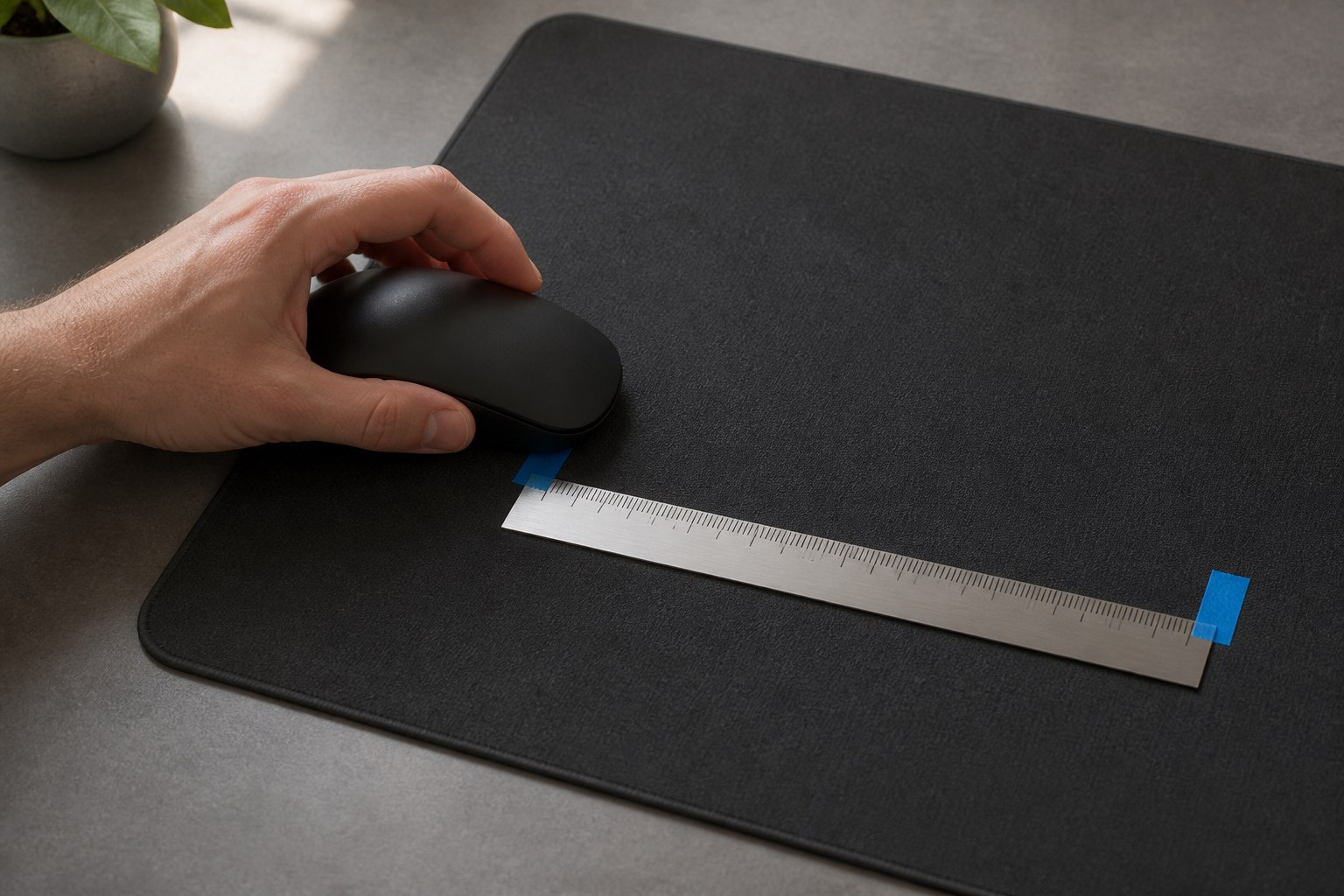
Place two marks on the mouse pad, far enough apart for a clean pass. Put the pointer at a screen reference. Move slowly from the first pad mark to the second and record the pointer endpoint. Reset both mouse and pointer, then make a faster pass between the same marks. Repeat each speed at least five times.
Use the cursor speed tool as an observation area, then compare endpoints manually against the same physical pad marks. The page measures cursor motion in CSS coordinates. It does not know your physical travel or hand speed and cannot automatically detect acceleration, report gain, or reconstruct a hardware curve. A repeatable endpoint difference suggests a change somewhere in the tested path, subject to measurement error.
Avoid correcting at the finish, which adds movement counts. Use the same shell reference at both marks. Alternate trial order so fatigue or warm-up does not always favor one speed.
Understand the test's limits
A browser receives input through the operating system and browser. User agents can combine pointer updates; MDN's coalesced-events documentation explains that multiple changes can be represented within one delivered event. Browser and operating-system units can also differ by path.
The test is best for comparing settings on the same machine, not reconstructing an exact acceleration curve. If the result matters for a game, test a fixed physical turn at two speeds inside that game. If it matters for a native creative app, test inside that app.
A different endpoint can also come from inconsistent marks, path curvature, pointer hitting a screen edge, or a profile change. Repeat before concluding.
Windows: Enhance pointer precision
In Windows 11, open Settings, Bluetooth & devices, Mouse. Microsoft’s mouse settings guide documents mouse pointer speed and Enhance pointer precision, including the classic Additional mouse settings path on applicable versions.
Turn Enhance pointer precision off when you want a fixed desktop relationship for calibration or comparison. Leave it on if accelerated desktop behavior helps and your applications work as intended. After changing it, sign out or restart only if behavior appears not to apply; normally the control takes effect directly.
Record the Windows speed position as well. Changing speed does not mean acceleration is active, but changing both controls at once prevents a fair before-and-after comparison. The Windows pointer guide separates all relevant layers.
macOS: Pointer acceleration
On current macOS versions documented by Apple, choose System Settings, Mouse, Point & Click, then open Advanced to turn Pointer acceleration off. Apple's tracking-speed guide notes the default fast-versus-slow behavior and the supported control.
The available interface can depend on macOS version and connected device. If the option is absent, confirm the exact version and device before using terminal commands or third-party tools. Old commands may not persist or may not represent the current settings system.
As on Windows, change tracking speed and acceleration separately. Use the full macOS tracking guide to establish a repeatable baseline.
Device software and custom curves
Some mouse utilities and specialist tools can add acceleration, angle snapping, sensitivity stages, or per-application profiles. If an equal-distance test still shows acceleration after the operating-system option is off, inspect every active utility and the application itself.
Custom acceleration curves map input speed to a gain. A useful curve must be documented: base sensitivity, threshold or offset, gain, cap, and application scope. Randomly adjusting a graph until one flick works creates a setup you cannot reproduce.
Use only trusted, maintained software and understand whether it installs a driver or background service. Do not stack multiple curve tools. Back up the configuration and confirm that uninstalling restores the intended input path.
Raw input in games
Raw or unadjusted input is designed to avoid ordinary operating-system cursor adjustment. The Pointer Lock API provides a public example: applications can request unadjusted movement, use relative deltas, and continue beyond screen boundaries.
Each game implementation is separate. A raw-input label should be verified in the current title, especially after updates. Test by measuring a 180- or 360-degree turn slowly and quickly over the same physical distance. Matching turns indicate fixed behavior more convincingly than a menu label alone.
Menus may still use the accelerated desktop cursor while gameplay uses raw movement. That split is normal if the game treats the interfaces differently.
Decide based on the task
For competitive FPS play, a fixed distance-to-rotation relationship is easy to measure, transfer, and practice. For a small desk with several high-resolution displays, desktop acceleration can reduce lifting while retaining slow control. For drawing, some users prefer acceleration off; others value quick travel between panels. Test the actual workflow.
Use success criteria rather than ideology. Can you select small targets without repeated correction? Can you cross the workspace comfortably? Can you reproduce a game turn at two speeds? Does the setting remain stable after login and application switches?
One computer can support different answers through raw-input games or per-application profiles, but every extra profile increases the chance of an unexplained switch. Keep the scheme as simple as the tasks allow.
Tune acceleration deliberately
If you keep acceleration, start with a comfortable slow-movement base. Test small targets first, then fast travel across the desktop. Increase gain only if long travel still demands excessive lifting. Set a cap if the tool supports one so very fast movements do not become uncontrollable.
Change one curve parameter at a time and save a named version. Test each candidate on the same selection and travel tasks. A curve that feels good for five minutes may create errors when tired, so confirm it over several sessions.
Do not use DPI changes to imitate a curve during the comparison. DPI stages create discrete changes, not speed-dependent gain, and an accidental stage switch complicates diagnosis.
Troubleshoot acceleration that returns
First confirm the operating-system setting. Then check whether device software loads a profile at login or application launch. Inspect the game's raw-input and acceleration options. Restart the app after changes because some programs read settings only at launch.
If results differ between browser and game, the applications may use different input paths. If results differ after reboot, a utility or profile service may be reapplying settings. Disable startup tools one at a time, preserving a way to restore them.
When pointer travel changes even at the same movement speed, investigate DPI profile switching, surface tracking, or connection trouble rather than acceleration alone. Follow the DPI troubleshooting flow.
Save the chosen behavior
Record mouse DPI, operating-system pointer or tracking speed, acceleration state, custom curve parameters, game raw-input state, and a measured turn distance where relevant. Include application profile names and the date.
Then stop adjusting. Whether you choose fixed or accelerated movement, practice depends on a stable relationship. Retest only after an OS update, driver change, utility change, or unexplained behavior gives you a reason.
Map a simple acceleration curve experimentally
You can characterize behavior without pretending to reconstruct the driver's exact formula. Choose one physical distance and three movement durations: slow, medium, and fast. Use a metronome or video timer for roughly repeatable pacing. Run at least five clean passes per speed and record output distance.
Divide each average output by the slow-speed average. If the ratios are about 1.0, the measured path behaves as fixed sensitivity. Ratios such as 1.0, 1.3, and 1.8 show increasing gain with speed. The values describe this test setup only; they are not universal driver coefficients.
Repeat after changing one curve parameter. Compare the ratios and error spread, not just the farthest fast endpoint. A curve is useful only if its slow behavior is controllable and its fast behavior is repeatable.
Avoid confusing other effects with acceleration
Angle snapping straightens movement direction; it does not necessarily make faster motion travel farther. DPI switching changes the base count rate in a discrete step. Polling instability changes event timing. Sensor malfunction can create jumps or missing counts. Frame stutter changes what you see. None of those is the same mechanism as speed-dependent gain.
A screen edge can also hide travel. If the pointer reaches the edge during the fast pass, it cannot show the additional distance. Use a wide test area, begin near the opposite side, or rely on a locked relative-input test. Keep display scaling and browser zoom fixed.
Negative acceleration is sometimes used informally to describe less output during fast movement. Before applying that label, rule out tracking-speed limits, packet loss, a bad surface, and inconsistent endpoints. Use the sensor accuracy tests for those alternatives.
Decide whether to separate desktop and game behavior
Keeping desktop acceleration while using game raw input can work well: the cursor crosses large displays efficiently, while camera turns retain fixed physical distance. Verify both paths after every major update. Test desktop endpoints at two speeds, then test an in-game 360-degree turn at two speeds.
The tradeoff is complexity. Menus may use desktop behavior while gameplay uses raw movement, producing an obvious transition. Application profiles can also fail to switch. If that inconsistency causes more errors than it solves, one fixed system-wide relationship may be preferable.
Document where acceleration applies. “Acceleration on” is incomplete if a game bypasses it; “desktop on, game raw, menus accelerated” tells you what to expect and troubleshoot.
Recheck after switching between windowed and full-screen modes if the application exposes different input options. The camera may remain fixed while an overlay or menu returns to the desktop cursor path. Describe the exact state that differs before changing the curve.
Sources
- Microsoft Support, Change mouse settings — Windows speed and Enhance pointer precision.
- Apple Support, mouse and trackpad tracking speed — macOS acceleration behavior and control.
- MDN, Pointer Lock API — relative and unadjusted application input.
- MDN, coalesced pointer events — browser test limitation.