Logitech G502 HERO DPI Settings Guide (2026)
The complete guide to finding the perfect DPI settings for your Logitech G502 HERO — for FPS gaming, MOBA, creative work, and everyday use.
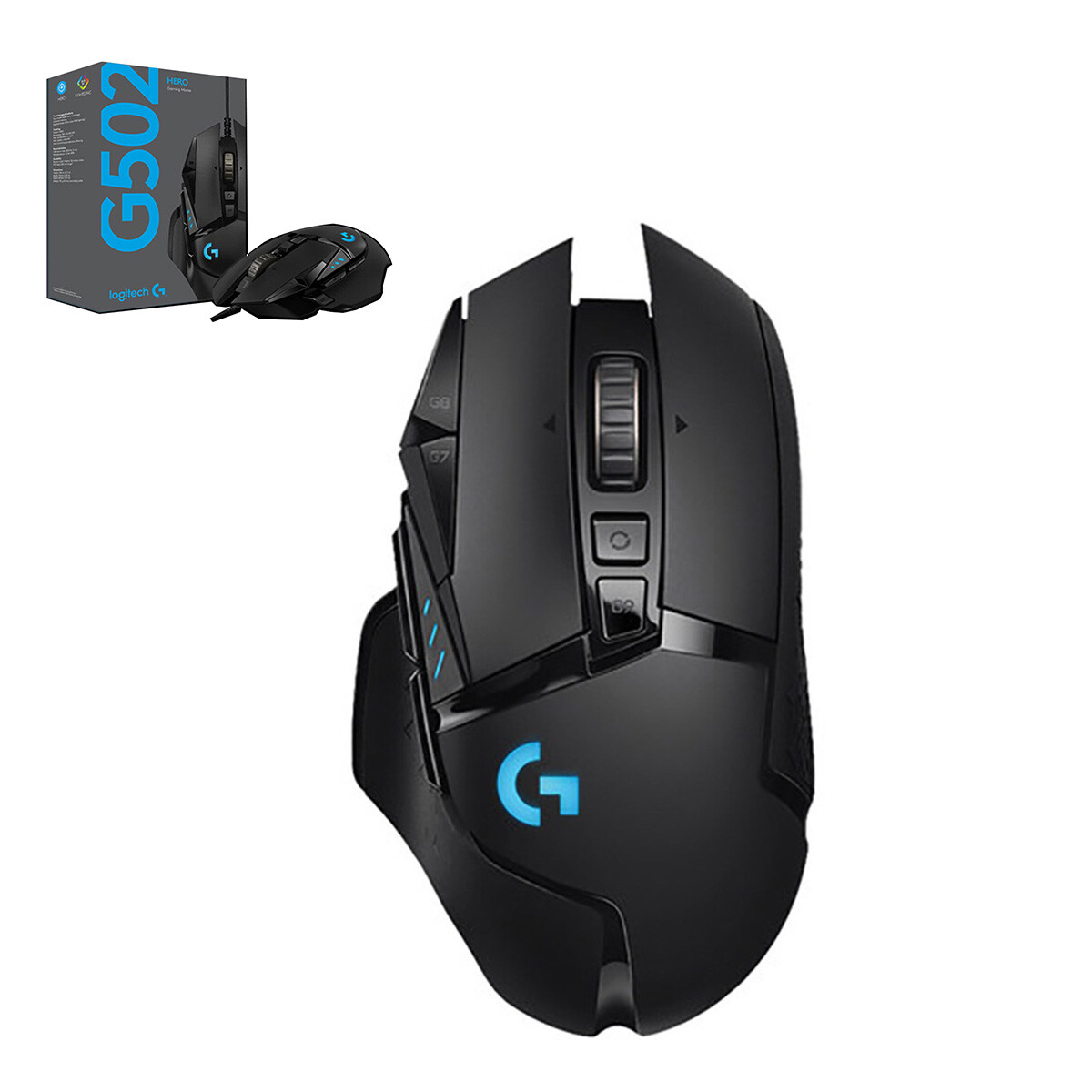
Logitech G502 HERO — Key Specs at a Glance
The Logitech G502 HERO uses the HERO 25K sensor, which is one of the most accurate optical sensors available. It supports DPI values from 100 to 25,600 in increments of 50. Despite the high maximum, most users find their ideal setting well below 3,200 DPI.
Best Logitech G502 DPI Settings by Use Case
The "best" DPI depends entirely on what you're doing. Here are our expert recommendations:
| Use Case | Recommended DPI | Why This Range |
|---|---|---|
| FPS Gaming (CS2, Valorant, Apex) | 400 – 800 | Maximum precision, builds consistent muscle memory, matches pro standards |
| Battle Royale (Fortnite, Warzone) | 800 – 1,600 | Balance of speed for building/movement and precision for aiming |
| MOBA / RTS (Dota 2, StarCraft) | 1,600 – 3,200 | Fast screen navigation, rapid clicking across large maps |
| Graphic Design / Illustration | 1,600 – 3,200 | Smooth cursor movement across large displays, fine control |
| Video Editing | 1,600 – 3,200 | Precise scrubbing on timeline, efficient navigation |
| General Office / Web | 1,000 – 1,600 | Comfortable everyday use, no excessive arm movement |
| 4K / Ultra-Wide Monitor | 1,600 – 3,200 | Higher DPI prevents needing to sweep mouse across desk |
Pro Tip: After setting your DPI, always test your actual DPI with our free tool to confirm the G502 is reporting the correct value. Manufacturer specs don't always match real-world measurements.
How to Change DPI on Your Logitech G502
Method 1: Using the DPI Button (Hardware)
The G502 has a dedicated DPI button located just below the scroll wheel. Press it to cycle through your configured DPI presets (you can store up to 5 presets). The on-board LED indicator briefly flashes to show which preset is active.
Method 2: Using Logitech G Hub Software
- Download and install Logitech G Hub from the official Logitech website
- Open G Hub and select your G502 HERO from the device list
- Click Pointer Settings in the left menu
- Under DPI, you'll see your current presets — click any preset to edit it
- Drag the slider or type a specific value (100–25,600 in steps of 50)
- Click Save — your new DPI is immediately active
Disable Pointer Acceleration: Before testing, go to Windows Settings → Bluetooth & devices → Mouse → Additional mouse settings → Pointer Options and uncheck "Enhance pointer precision". This ensures your DPI test on our DPI testing tool gives accurate results.
Verifying Your G502 DPI Is Accurate
Even after setting your DPI in G Hub, you should verify it with a physical test. Our Mouse DPI Test tool measures your actual DPI by tracking how many pixels your cursor moves per inch of physical movement. Discrepancies between G Hub's reported DPI and the actual measurement can occur at non-native DPI values.
The G502 HERO's native DPI values (where the sensor performs optimally without interpolation) are: 400, 800, 1,600, 3,200, 6,400, 12,800, and 25,600 DPI.
Pro Gamer DPI Settings for the Logitech G502
The G502 has been used by thousands of professional players. Here's what the research shows about optimal competitive settings:
| Game | Common Pro DPI | Typical In-Game Sensitivity | Resulting eDPI |
|---|---|---|---|
| CS2 / CS:GO | 400 | 1.8 – 2.5 | 720 – 1,000 |
| Valorant | 400 – 800 | 0.25 – 0.45 | 200 – 360 |
| Apex Legends | 800 | 1.0 – 1.5 | 800 – 1,200 |
| Fortnite | 400 – 800 | 0.06 – 0.12 (X/Y) | Variable |
Use our eDPI Calculator to find your effective DPI and match it to pro player standards. Also check your polling rate — the G502 supports up to 1,000 Hz for maximum responsiveness.
Frequently Asked Questions — Logitech G502 DPI
Tools to Optimize Your G502 Setup
After setting your DPI, use these free tools to complete your optimization:
Ready to Test Your Logitech G502 DPI?
Use our free tool to verify your G502's actual DPI — takes less than 30 seconds.
Test My G502 DPI — Free